
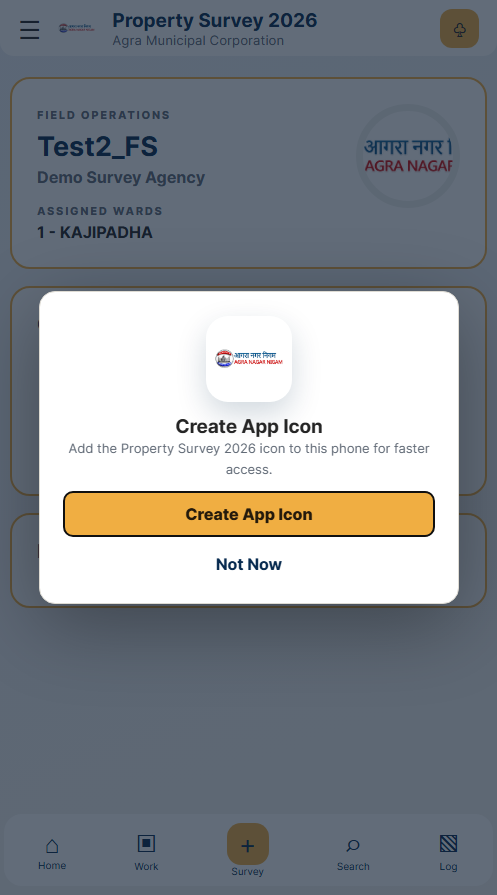
0 Create the Survey App icon सर्वे ऐप आइकन बनाएँ
Add the Surveyor App to the phone’s Home screen before beginning field work.
- Open the Surveyor App in the phone browser and tap Get Started.फोन के ब्राउज़र में Surveyor App खोलकर Get Started दबाएँ।
- Sign in and complete the temporary-password change when prompted.साइन इन करें और पूछे जाने पर अस्थायी पासवर्ड बदलें।
- When Create App Icon appears, tap Create App Icon.Create App Icon संदेश आने पर Create App Icon दबाएँ।
- Android/Chrome: approve Install app or Add to Home screen.Android/Chrome में Install app या Add to Home screen स्वीकार करें।
- iPhone/Safari: tap Share, select Add to Home Screen, then tap Add.iPhone/Safari में Share → Add to Home Screen → Add दबाएँ।
- Confirm that the ANN Survey App icon is visible on the phone Home screen.फोन की Home screen पर ANN Survey App आइकन दिखाई देना सुनिश्चित करें।
- Use the new icon for future survey work.आगे के सर्वे कार्य के लिए इसी नए आइकन से ऐप खोलें।
Before starting शुरू करने से पहले
This guide is for authorised Field Surveyors. Screen values, ward names and survey numbers in the illustrations are examples; use the live data shown in your app.
Use a charged Android phone with working mobile data.
चार्ज किया Android फोन और सक्रिय मोबाइल डेटा रखें।
Enable precise Location GPS and Camera access.
Location GPS और Camera अनुमति चालू करें।
Keep your authorised username or registered mobile and password ready.
अपना अधिकृत यूज़रनेम/मोबाइल और पासवर्ड तैयार रखें।
Never share credentials, citizen data, photos or documents.
लॉगिन और नागरिक जानकारी किसी से साझा न करें।
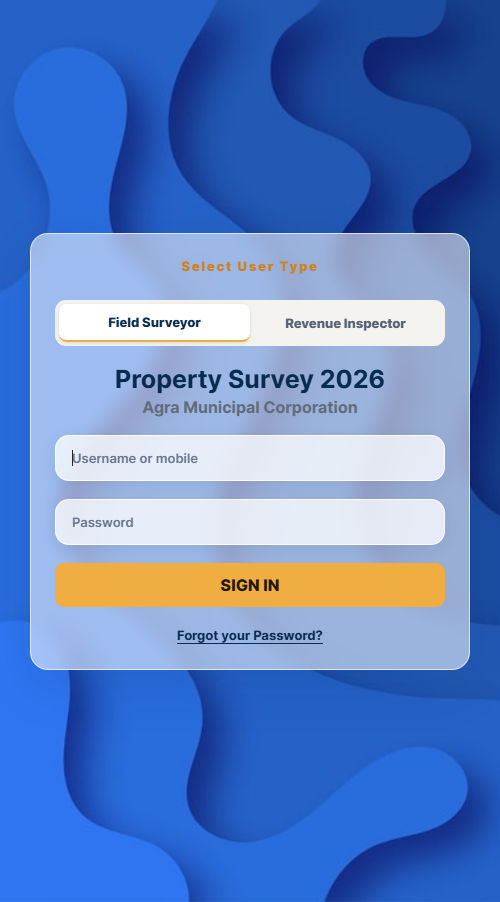
1 Sign in साइन इन
Open the Surveyor App and select Field Surveyor.
- Tap Get Started on the authorised-use opening screen.अधिकृत उपयोग वाली आरंभिक स्क्रीन पर Get Started दबाएँ।
- Keep Field Surveyor selected. Revenue Inspector opens the separate RI portal.Field Surveyor चयनित रखें; Revenue Inspector अलग RI portal खोलता है।
- Enter the assigned username or registered mobile number and password, then tap SIGN IN.दिया गया यूज़रनेम/मोबाइल और पासवर्ड भरकर SIGN IN दबाएँ।
- If prompted, change the temporary password using at least 8 characters with uppercase, lowercase and a number.निर्देश मिलने पर कम से कम 8 अक्षर, uppercase, lowercase और number वाला नया पासवर्ड बनाएँ।
- If the password is forgotten, tap Forgot your Password? and contact the displayed IT Department.पासवर्ड भूलने पर Forgot your Password? दबाकर दिखाए गए IT Department से संपर्क करें।
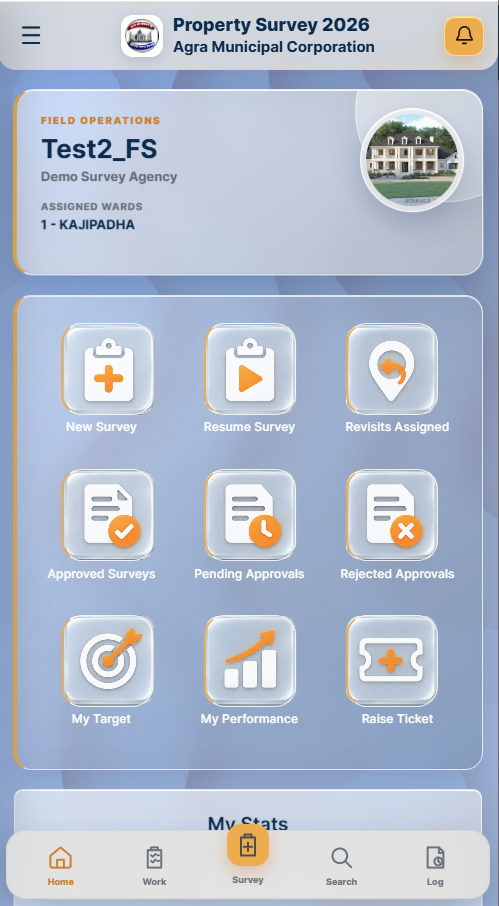
2 Home dashboard होम डैशबोर्ड
Use Home to see work counts and common actions.
- Check Surveyed Properties, Surveys on Hold, Pending Approval, Approved, Rejected and Revisit Assigned counts. Use >> to open a count’s list.सभी सर्वे स्थितियों की संख्या देखें; संबंधित सूची खोलने के लिए >> दबाएँ।
- Tap New Survey to begin a fresh property survey.नई संपत्ति का सर्वे शुरू करने के लिए New Survey दबाएँ।
- Tap Resume Survey to continue an On Hold survey.On Hold सर्वे जारी रखने के लिए Resume Survey दबाएँ।
- Tap Approved Surveys to view RI-approved surveys and their full details.RI द्वारा स्वीकृत सर्वे और पूरा विवरण देखने के लिए Approved Surveys दबाएँ।
- Tap Pending Approvals to view surveys waiting for RI review.RI समीक्षा की प्रतीक्षा वाले सर्वे के लिए Pending Approvals दबाएँ।
- Tap Rejected Approvals to view rejected surveys and their reasons.अस्वीकृत सर्वे और कारण देखने के लिए Rejected Approvals दबाएँ।
- Tap Revisits Assigned, read the reason and use Resume Revisit for the applicable unit.Revisits Assigned दबाएँ, कारण पढ़ें और संबंधित यूनिट के लिए Resume Revisit उपयोग करें।
- Use My Target and My Performance to monitor assigned work and quality.निर्धारित कार्य और गुणवत्ता देखने के लिए My Target तथा My Performance उपयोग करें।
- Tap Raise Ticket for Help & Support.सहायता के लिए Raise Ticket दबाएँ।
- Open Menu for Home, Assignments, Start New Survey, My Surveys, Help, Profile and Logout.Home, Assignments, नया सर्वे, My Surveys, सहायता, प्रोफाइल और Logout के लिए Menu खोलें।
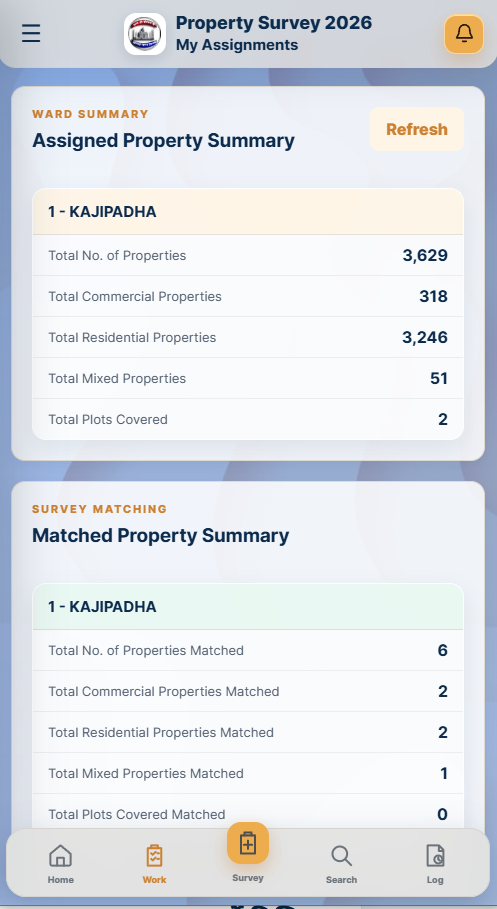
3 Check assignments असाइनमेंट जाँचें
Confirm the correct ward before collecting data.
- Open Menu and tap My Assignments, or tap Work in the bottom navigation.Menu में My Assignments या नीचे Work दबाएँ।
- If several wards are assigned, select the required Ward tab.एक से अधिक वार्ड मिलने पर आवश्यक Ward टैब चुनें।
- Review Assigned Property Summary: total, commercial, residential, mixed and plots.Assigned Property Summary में कुल, व्यावसायिक, आवासीय, मिश्रित और प्लॉट संख्या जाँचें।
- Review Matched Property Summary, including new or unmatched properties.Matched Property Summary तथा new/unmatched संपत्तियाँ जाँचें।
- Tap Refresh if the latest assignment is missing.नया असाइनमेंट न दिखे तो Refresh दबाएँ।
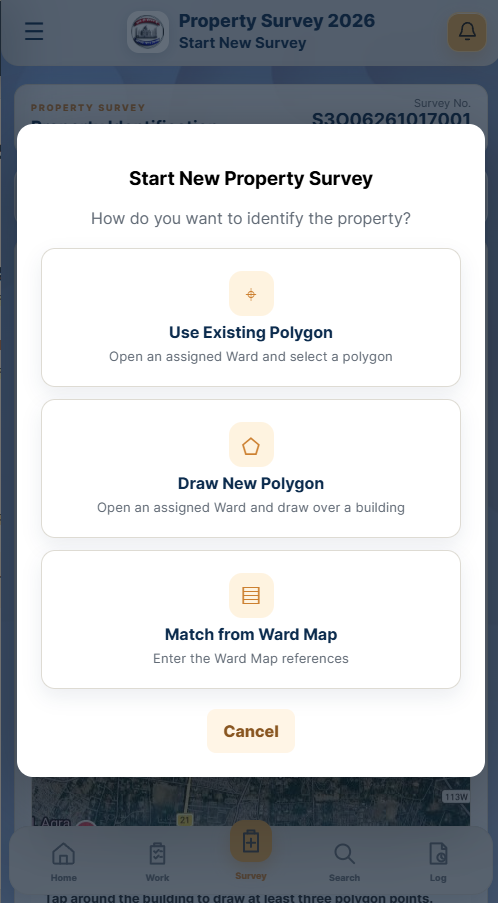
4 Start a new survey नया सर्वे शुरू करें
Tap New Survey or Survey (+). The app first obtains a fresh GPS location.
- Allow precise location access. If it fails, use Retry Location; Cancel returns without starting.सटीक लोकेशन की अनुमति दें। विफल होने पर Retry Location दबाएँ; Cancel से सर्वे शुरू नहीं होगा।
- Use Existing Polygon: select an existing building footprint inside an assigned ward.Assigned Ward में मौजूदा बिल्डिंग पॉलीगॉन चुनें।
- Draw New Polygon: draw a new outline over the property inside an assigned ward.Assigned Ward के भीतर संपत्ति की नई सीमा बनाएँ।
- Match from Ward Map: enter Map No., Sheet No. and Polygon No. from the official ward map.आधिकारिक Ward Map के Map No., Sheet No. और Polygon No. दर्ज करें।
- If multiple wards are assigned, select the correct ward and tap Open Ward Map. With one ward, its boundary opens directly.एक से अधिक वार्ड होने पर सही वार्ड चुनकर Open Ward Map दबाएँ; केवल एक वार्ड होने पर उसकी सीमा सीधे खुलेगी।
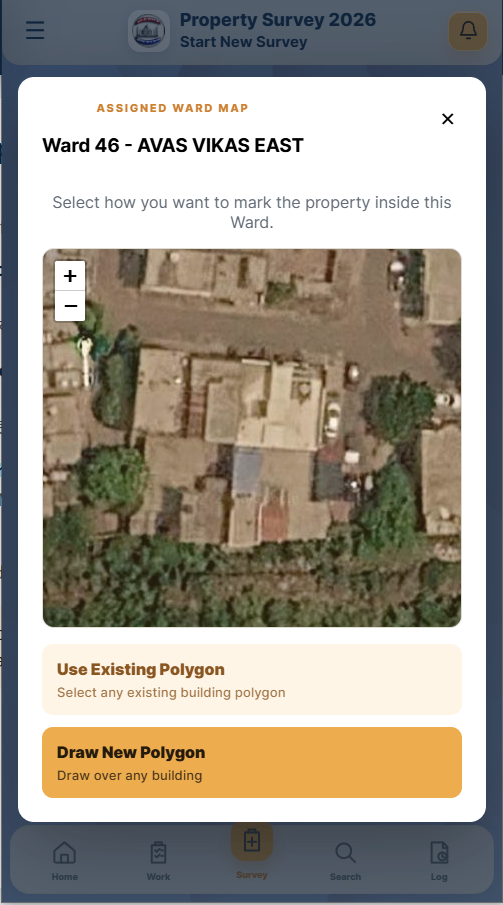
5 Select or draw the polygon पॉलीगॉन चुनें या बनाएँ
The assigned ward boundary is shown before the property map opens.
- Confirm the Ward number and boundary preview.Ward नंबर और सीमा का पूर्वावलोकन जाँचें।
- For Use Existing Polygon, tap the exact building footprint, verify the highlight, then tap Assign a Map No.Use Existing Polygon में सही बिल्डिंग चुनें, हाइलाइट जाँचें और Assign a Map No. दबाएँ।
- If no footprint exists, tap Building Not Marked.बिल्डिंग सीमा उपलब्ध न हो तो Building Not Marked दबाएँ।
- For Draw New Polygon, the app refreshes GPS and zooms to your current location.Draw New Polygon पर ऐप GPS दोबारा लेकर वर्तमान स्थान तक ज़ूम करता है।
- If you are outside the selected ward, acknowledge the Location Outside Assigned Ward modal, move inside the ward and retry.चयनित वार्ड से बाहर होने पर Location Outside Assigned Ward संदेश बंद करें, वार्ड के भीतर जाएँ और दोबारा प्रयास करें।
- Tap around the building to add at least three points. Use Undo Point to remove the last point and Finish Polygon to close the outline.बिल्डिंग के चारों ओर कम से कम तीन बिंदु लगाएँ। अंतिम बिंदु हटाने के लिए Undo Point और सीमा पूर्ण करने के लिए Finish Polygon दबाएँ।
- Check the completed outline and tap Assign a Map No.पूरी सीमा जाँचकर Assign a Map No. दबाएँ।
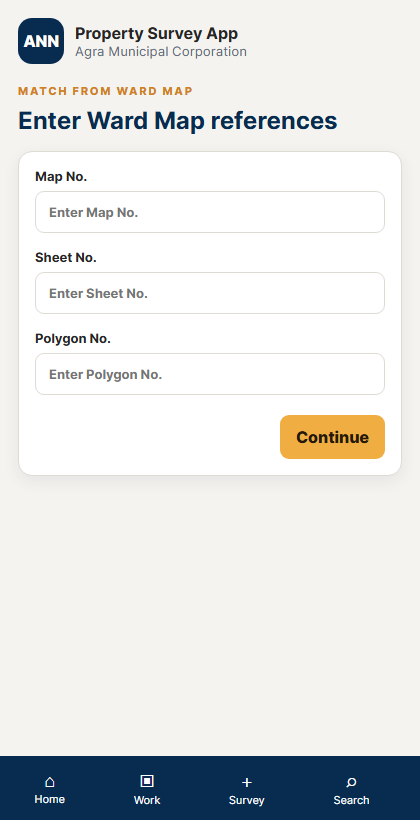
5A Match from Ward Map Ward Map से मिलान
Use this option only when the official map references are available.
- Enter Map No., Sheet No. and Polygon No. exactly as printed on the Ward Map.Ward Map पर लिखे Map No., Sheet No. और Polygon No. ठीक उसी प्रकार दर्ज करें।
- Tap Continue to Stage 1.Continue to Stage 1 दबाएँ।
- Use Back to return to the survey-method choices without starting.सर्वे शुरू किए बिना विकल्पों पर लौटने के लिए Back दबाएँ।
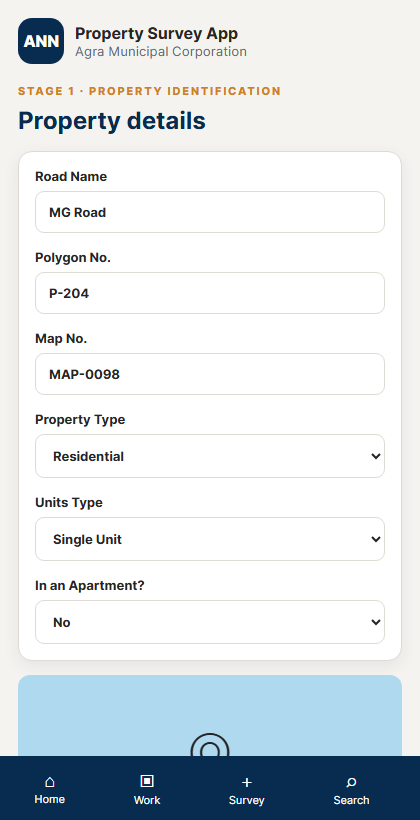
6 Complete Stage 1 चरण 1 पूरा करें
Record the property identity and evidence for the selected polygon.
- Confirm Survey No., assigned ward, Polygon No. and Map No.; Ward Map surveys also show Sheet No.Survey No., वार्ड, Polygon No. और Map No. जाँचें; Ward Map सर्वे में Sheet No. भी दिखेगा।
- Enter Road Name and select the configured Property Type.Road Name दर्ज करके सही Property Type चुनें।
- Select Single Unit or Multiple Units. Multiple Units requires Number of Properties of at least 2.Single Unit या Multiple Units चुनें। Multiple Units में कम से कम 2 properties दर्ज करें।
- For Apartment or Shopping Complex = Yes, enter the applicable name.Apartment या Shopping Complex में Yes चुनने पर संबंधित नाम दर्ज करें।
- Capture at least one clear property image.कम से कम एक स्पष्ट संपत्ति फोटो लें।
- Tap Save Stage 1. In Confirm Stage 1, verify Survey No., Polygon No., Map No. and the photo.Save Stage 1 दबाएँ। Confirm Stage 1 में Survey No., Polygon No., Map No. और फोटो जाँचें।
- Tap Confirm & Save, or Go Back to correct the form.सही होने पर Confirm & Save, अन्यथा सुधार के लिए Go Back दबाएँ।
- After Stage 1 is saved, continue to Stage 2 Owner & Department Data.Stage 1 सेव होने के बाद Stage 2 Owner & Department Data पर जाएँ।
7 Complete every Stage 2 unit Stage 2 की हर यूनिट पूरी करें
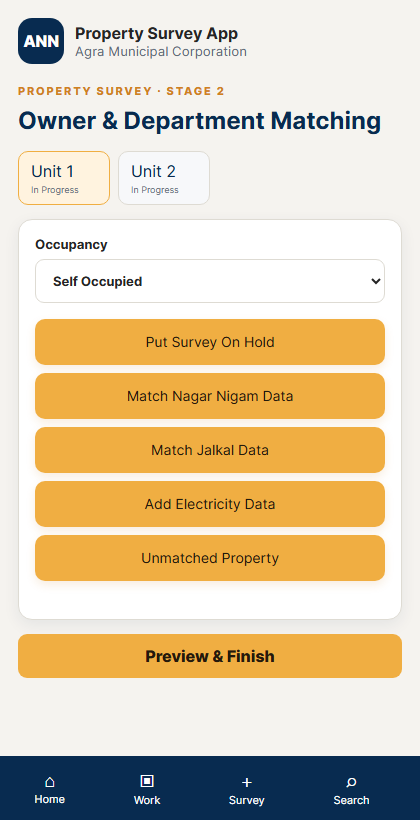
Each Unit tab is saved independently and shows its current status.
- Select Unit 1 onward and choose Self Occupied or Tenancy.Unit 1 से आगे हर टैब खोलकर Self Occupied या Tenancy चुनें।
- Complete one valid disposition for every unit: department matched, unmatched, or on hold.हर यूनिट के लिए department matched, unmatched या on hold में से सही स्थिति पूरी करें।
- Use Match Nagar Nigam Data and Match Jalkal Data when department records exist.रिकॉर्ड उपलब्ध होने पर Nagar Nigam और Jalkal डेटा मिलाएँ।
- Add Electricity Consumer No. and Consumer Name when available, then tap Add Electricity Data.उपलब्ध होने पर Electricity Consumer No. और Consumer Name भरकर Add Electricity Data दबाएँ।
- Check each Unit tab’s status before selecting Preview & Finish.Preview & Finish से पहले हर Unit टैब की स्थिति जाँचें।
7A Match Nagar Nigam data नगर निगम डेटा का मिलान
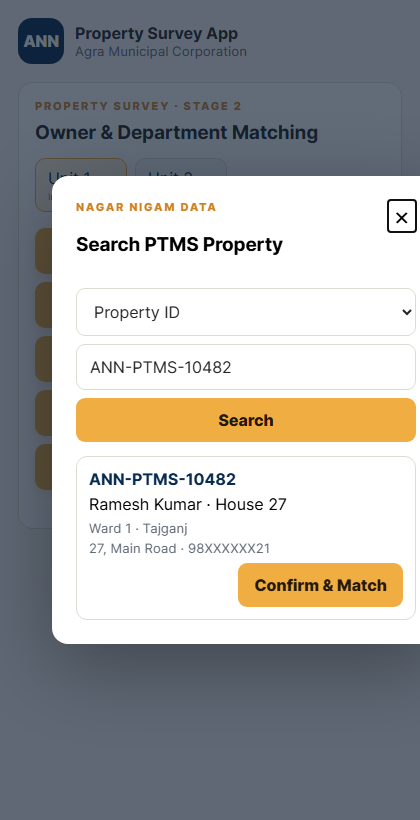
Complete this first for the currently selected unit.
- Confirm the correct Unit tab and Occupancy.सही Unit टैब और Occupancy की पुष्टि करें।
- Tap Match Nagar Nigam Data.Match Nagar Nigam Data दबाएँ।
- Choose Property ID, House No., Mobile No., Owner Name or Popular Name.Property ID, House No., Mobile No., Owner Name या Popular Name से खोजें।
- Enter the value and tap Search.खोज मान दर्ज करके Search दबाएँ।
- Verify the Property ID, owner, house, ward, mohalla, address and mobile in the result.परिणाम में Property ID, मालिक, मकान, वार्ड, मोहल्ला, पता और मोबाइल जाँचें।
- Tap Confirm & Match only on the correct property.केवल सही संपत्ति पर Confirm & Match दबाएँ।
7B Review Matched Department Data मिलान किया गया विभागीय डेटा जाँचें
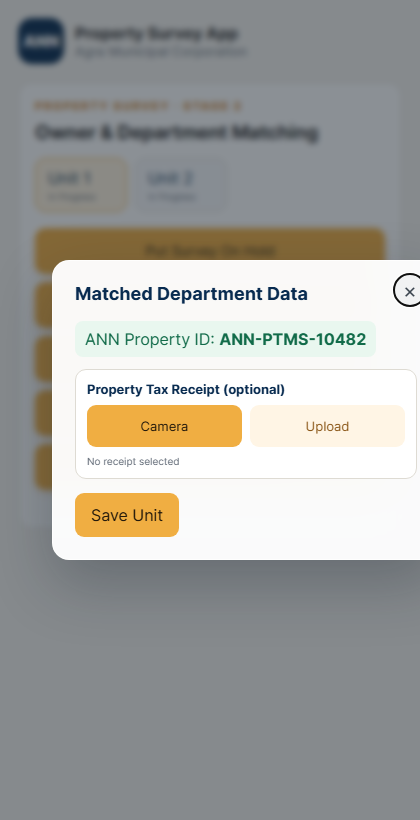
Confirm & Match opens this modal for the same unit.
- Verify the displayed ANN Property ID.दिखाई गई ANN Property ID जाँचें।
- Add the Property Tax Receipt by Camera or Upload when available.उपलब्ध होने पर Camera या Upload से Property Tax Receipt जोड़ें।
- The Jalkal receipt option becomes applicable after a Jalkal ID is matched.Jalkal ID के मिलान के बाद Jalkal receipt विकल्प लागू होता है।
- Tap Save Unit to save the Nagar Nigam match.नगर निगम मिलान सेव करने के लिए Save Unit दबाएँ।
- The app remains on the same unit; it does not move to the next unit yet.ऐप इसी यूनिट पर रहता है; अभी अगली यूनिट पर नहीं जाता।
7C Match Jalkal data on the same unit उसी यूनिट पर जलकल डेटा मिलाएँ
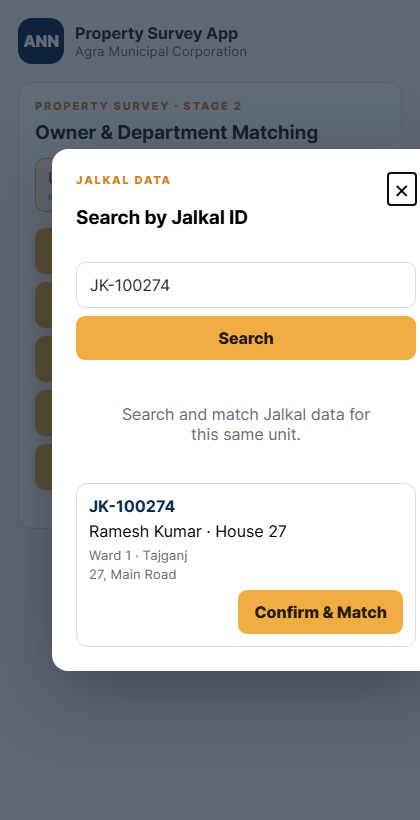
After the Nagar Nigam match is saved, the Jalkal search opens automatically.
- Keep the same unit selected.उसी यूनिट को चयनित रहने दें।
- Enter the Jalkal ID and tap Search.Jalkal ID दर्ज करके Search दबाएँ।
- Verify consumer name, house, ward and address.उपभोक्ता नाम, मकान, वार्ड और पता जाँचें।
- Tap Confirm & Match on the correct Jalkal record.सही Jalkal रिकॉर्ड पर Confirm & Match दबाएँ।
- Review both ANN Property ID and Jalkal ID in Matched Department Data.Matched Department Data में ANN Property ID और Jalkal ID दोनों जाँचें।
- Add an optional Jalkal Receipt and tap Save Unit.वैकल्पिक Jalkal Receipt जोड़कर Save Unit दबाएँ।
- Only after this save should you continue to the next unit.इस सेव के बाद ही अगली यूनिट पर जाएँ।
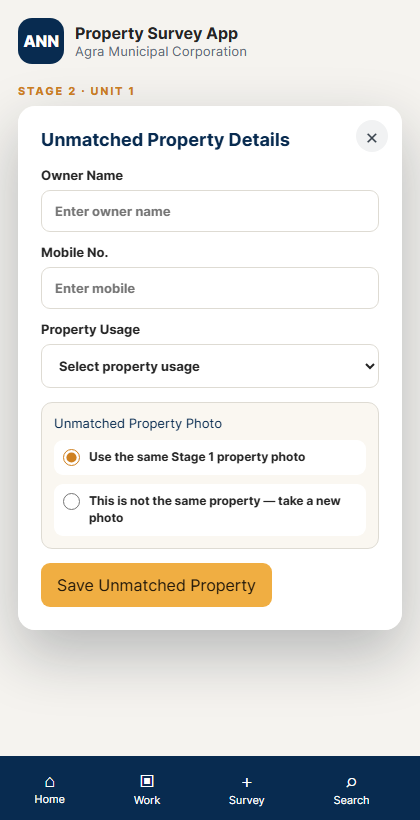
7D On Hold or Unmatched Property On Hold या Unmatched Property
Use these outcomes only when department matching cannot be completed correctly.
- Put Survey On Hold: choose Door Locked, No One Available to Provide Details, or Details Denied; then tap Save On Hold.सही कारण चुनकर Save On Hold दबाएँ।
- To resume a held unit, open it, tap Unit Survey is on Hold, then Remove Hold & Continue. Keep On Hold leaves it unchanged.होल्ड यूनिट में Unit Survey is on Hold खोलकर Remove Hold & Continue दबाएँ; Keep On Hold से स्थिति नहीं बदलेगी।
- Unmatched Property: enter Owner Name, Mobile No., Property Usage and Establishment Name when Commercial.Owner Name, Mobile No., Property Usage तथा Commercial होने पर Establishment Name भरें।
- Choose Use the same Stage 1 property photo when it is the same property.वही संपत्ति होने पर Stage 1 वाला फोटो उपयोग करें।
- If it is not the same property, choose the new-photo option and tap Take Property Photo; wait for GPS captured.अलग संपत्ति होने पर नया फोटो विकल्प चुनें, Take Property Photo दबाएँ और GPS captured की प्रतीक्षा करें।
- Tap Save Unmatched Property.Save Unmatched Property दबाएँ।
8 Finish and send to RI पूरा करके RI को भेजें
GPS was captured at survey start. Final submission is completed from Stage 2.
- Tap Preview & Finish.Preview & Finish दबाएँ।
- Review the displayed status of every Unit.दिखाई गई हर Unit की स्थिति जाँचें।
- If any unit is In Progress, tap Go Back and complete it; Finish & Send to RI remains disabled.कोई Unit In Progress हो तो Go Back दबाकर उसे पूरा करें; Finish & Send to RI सक्रिय नहीं होगा।
- When all units are complete, tap Finish & Send to RI.सभी यूनिट पूर्ण होने पर Finish & Send to RI दबाएँ।
- Wait for Survey Finished and record the Survey No.Survey Finished संदेश की प्रतीक्षा करें और Survey No. नोट करें।
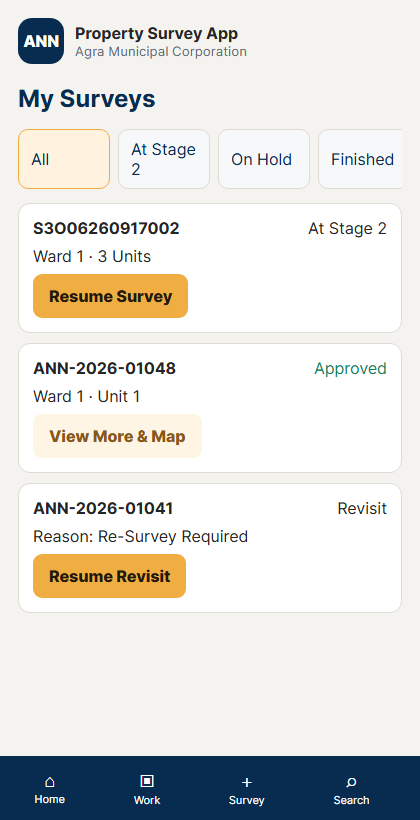
9 Survey lists, details and resume सर्वे सूची, विवरण और पुनःआरंभ
Dashboard counts and shortcuts open the corresponding property list.
- My Surveys: filter All Surveys, Initiated, Stage1 Only, At Stage 2, On Hold or Finished.My Surveys में आवश्यक स्थिति फ़िल्टर चुनें।
- Tap View More & Map to check Map No., Polygon No., unit progress, road, saved polygon and GPS point.विवरण, सेव पॉलीगॉन और GPS देखने के लिए View More & Map दबाएँ।
- Tap Resume Survey for an incomplete Stage 1, Stage 2 or On Hold survey.अधूरे Stage 1, Stage 2 या On Hold सर्वे के लिए Resume Survey दबाएँ।
- Approved Surveys: tap More Details to review identifiers, images, polygon and unit details.Approved Surveys में More Details से पहचान, फोटो, पॉलीगॉन और यूनिट विवरण देखें।
- Pending Approvals: review surveys waiting for RI action.RI कार्रवाई की प्रतीक्षा वाले सर्वे Pending Approvals में देखें।
- Rejected Approvals: read the displayed Reason before taking further action.Rejected Approvals में आगे काम करने से पहले Reason पढ़ें।
- Revisits Assigned: read the Reason and tap Resume Revisit; the app opens the applicable Stage 2 unit.Reason पढ़कर Resume Revisit दबाएँ; ऐप संबंधित Stage 2 यूनिट खोलेगा।
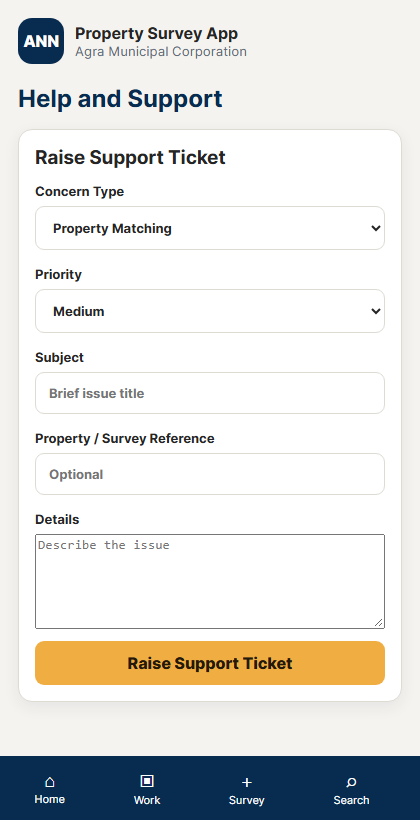
10 Help, profile and logout सहायता, प्रोफाइल और लॉगआउट
Raise a traceable ticket when local checks do not solve the issue.
- Open Help & Support from Menu or tap Raise Ticket.Menu में Help & Support या Raise Ticket दबाएँ।
- Select Concern Type and Priority, then enter Subject, optional Survey No./Property Reference and Concern Details.Concern Type, Priority, Subject, वैकल्पिक Survey No./Property Reference और विवरण भरें।
- Describe the ward, exact action and error. Never include passwords or OTPs.वार्ड, सही कार्रवाई और त्रुटि लिखें; पासवर्ड या OTP कभी न लिखें।
- Tap Raise Support Ticket once and record the generated ticket number and status.Raise Support Ticket एक बार दबाकर टिकट नंबर और status नोट करें।
- My Profile shows Name, Employee code and Agency; use Change Password when required.My Profile में Name, Employee code और Agency देखें; आवश्यकता पर Change Password उपयोग करें।
- Use Logout after completing work, especially on a shared phone.काम पूरा होने पर, विशेषकर साझा फोन में, Logout करें।
Current workflow status guide वर्तमान स्थिति मार्गदर्शिका
Stage 1 is incomplete or saved; use Resume Survey.
Stage 1 अधूरा या सेव है; Resume Survey उपयोग करें।
One or more units still require Stage 2 work.
एक या अधिक यूनिट का Stage 2 काम बाकी है।
Nagar Nigam match is saved; match Jalkal for the same unit.
Nagar Nigam मिलान सेव है; उसी यूनिट में Jalkal मिलाएँ।
Required department matching for the unit is saved.
यूनिट का आवश्यक विभागीय मिलान सेव है।
No valid department record was found and unmatched details were saved.
सही विभागीय रिकॉर्ड न मिलने पर unmatched विवरण सेव है।
The unit is held for an approved reason and can be resumed later.
स्वीकृत कारण से यूनिट होल्ड है और बाद में जारी की जा सकती है।
Finished survey has been sent to the Revenue Inspector.
पूर्ण सर्वे Revenue Inspector को भेजा गया है।
Read the RI decision and remarks; Resume Revisit only when assigned.
RI निर्णय और टिप्पणी पढ़ें; केवल असाइन होने पर Resume Revisit करें।
Troubleshooting समस्या समाधान
Check username/mobile, password and internet. Contact IT when required.
यूज़रनेम/मोबाइल, पासवर्ड और इंटरनेट जाँचें।
Move outdoors, enable precise location and retry after accuracy appears.
बाहर जाएँ, precise location चालू करें और पुनः प्रयास करें।
Do not save. Return to the map and select the correct building.
सेव न करें; मैप पर सही बिल्डिंग चुनें।
Enable permission, reopen the app, or use authorised Upload Photo.
कैमरा अनुमति चालू करके ऐप दोबारा खोलें।
Open My Surveys, filter incomplete work and tap Resume Survey.
My Surveys में अधूरा काम फ़िल्टर कर Resume Survey दबाएँ।
Correct highlighted mandatory fields and confirm photo and GPS.
अनिवार्य फ़ील्ड ठीक करें और फोटो तथा GPS जाँचें।
Field checklist फील्ड चेकलिस्ट
- Before leaving: Phone charged, data active, login tested and assignments refreshed.
फोन चार्ज, डेटा सक्रिय, लॉगिन जाँचा और असाइनमेंट रिफ्रेश। - At the property: Correct assigned ward, GPS location, building and respondent confirmed.
सही assigned ward, GPS location, बिल्डिंग और उत्तरदाता की पुष्टि। - Before Stage 1 save: Road, polygon, map, property type, unit count and photo checked.
रोड, पॉलीगॉन, मैप, property type, यूनिट संख्या और फोटो जाँचे। - Before Finish & Send to RI: Every Unit is Matched, Unmatched or correctly On Hold; no Unit remains In Progress.
हर Unit Matched, Unmatched या सही On Hold हो; कोई Unit In Progress न रहे। - End of day: No incomplete record forgotten, tickets noted and Logout completed.
अधूरा रिकॉर्ड न छूटे, टिकट नोट हों और Logout किया हो।
Complete current app reference वर्तमान ऐप के सभी चरण और विकल्प
The following table matches the labels and conditional choices in the current Surveyor App.
| Stage or screen | Exact current options | हिंदी निर्देश |
|---|---|---|
| Location required | Cancel; Retry Location. Precise GPS is required before survey-method selection. | सर्वे विधि चुनने से पहले precise GPS आवश्यक है। |
| Survey method | Use Existing Polygon; Draw New Polygon; Match from Ward Map; Cancel. | मौजूदा पॉलीगॉन चुनें, नया बनाएँ या Ward Map से मिलान करें। |
| Assigned Ward | Multiple wards: select Assigned Ward, Back or Open Ward Map. One ward: boundary preview opens directly. Then Use Existing Polygon or Draw New Polygon. | एक से अधिक वार्ड में सही वार्ड चुनें; एक वार्ड हो तो सीमा सीधे खुलेगी। |
| Ward Map match | Map No.; Sheet No.; Polygon No. | तीनों संदर्भ Ward Map के अनुसार दर्ज करें। |
| Stage 1 map | Google Hybrid; Google Satellite; Google Roadmap; OpenStreetMap. Existing: Building Not Marked; Assign a Map No. Draw: live-location zoom; outside-ward modal; Undo Point; Finish Polygon; Assign a Map No. | सही बेस मैप चुनें; चयन या ड्रॉ पूरा करके Map No. असाइन करें। |
| Stage 1 fields | Road Name; Polygon No.; Map No.; Sheet No. for Ward Map; configured Property Type. | सभी पहचान फ़ील्ड जाँचें। |
| Units | Single Unit; Multiple Units. Multiple requires Number of Properties, minimum 2. | Multiple Units पर कम से कम 2 दर्ज करें। |
| Apartment | No; Yes; Apartment; Other; Other Apartment Name. | Yes पर नाम चुनें या Other नाम लिखें। |
| Shopping Complex | No; Yes; Shopping Complex; Other; Other Complex Name. | Yes पर नाम चुनें या Other नाम लिखें। |
| Stage 1 photo and review | Take Photo; Upload Photo; GPS metadata; review Details, Image and Location; Go Back; Confirm & Save. | GPS फोटो लें और समीक्षा के बाद सेव करें। |
| Stage 2 units | Unit 1 onward; per-unit status. Occupancy: Self Occupied; Tenancy. | हर यूनिट अलग पूरा करें। |
| Put Survey On Hold | Door Locked; No One Available to Provide Details; Details Denied; Save On Hold; Remove Hold & Continue. | सही कारण चुनें; बाद में होल्ड हटाकर जारी करें। |
| Nagar Nigam match | Property ID; House No.; Mobile No.; Owner Name; Popular Name; Confirm & Match. | सही PTMS रिकॉर्ड खोजकर मिलाएँ। |
| Jalkal match | Search by Jalkal ID; Confirm & Match. | Jalkal ID से रिकॉर्ड मिलाएँ। |
| Matched unit | Confirm & Match opens Matched Department Data. Verify ANN ID; optional Property Tax receipt; Save Unit; remain on the same unit; match Jalkal ID; verify both IDs; optional Jalkal receipt; Save Unit; then continue to the next unit. | पहले ANN ID सेव करें, उसी यूनिट पर Jalkal मिलाएँ, दोनों ID जाँचकर दोबारा Save Unit करें, फिर अगली यूनिट पर जाएँ। |
| Electricity Data | Optional Electricity Consumer No.; Consumer Name; Add Electricity Data. | उपलब्ध होने पर बिजली विवरण जोड़ें। |
| Unmatched Property | Owner Name; Mobile No.; configured Property Usage; Establishment Name for Commercial usage. | मालिक, मोबाइल, उपयोग और प्रतिष्ठान नाम भरें। |
| Unmatched photo | Use same Stage 1 photo; or different property and Take Property Photo with GPS. | अलग संपत्ति पर नया GPS फोटो लें। |
| Preview & Finish | Unit status list; Go Back; Finish & Send to RI. Disabled while any unit is In Progress. | सभी यूनिट पूर्ण होने पर RI को भेजें। |
Other Surveyor screens and tools
| Screen | Current functions and options | हिंदी निर्देश |
|---|---|---|
| Home | Surveyed; On Hold; Pending Approval; Approved; Rejected; Revisit. Quick actions: New, Resume, Revisits, Approved, Pending, Rejected, Target, Performance, Ticket. | स्थिति संख्या या शॉर्टकट खोलें। |
| Assignments | Ward tabs; Assigned Property Summary; Matched Property Summary; Refresh. | वार्ड और मिलान संख्या जाँचें। |
| Target | Target Progress; Target Completion; Pending Survey Trend; last 6 months; View All. | लक्ष्य और लंबित सर्वे देखें। |
| Performance | Today; This Week; This Month; Work & Quality Scorecard. | अवधि चुनकर प्रदर्शन देखें। |
| Search | Property ID, owner, mobile or house no.; Ward; Mohalla; Street. Results show ID, Owner, Mobile, House, Ward and Source. | सही जानकारी से रिकॉर्ड खोजें। |
| My Surveys | All; Initiated; Stage1 Only; At Stage 2; On Hold; Finished; View More & Map; Resume Survey. | स्थिति फ़िल्टर करके विवरण खोलें। |
| Revisit | Reason; Resume Revisit; opens the applicable Stage 2 unit. | कारण पढ़कर उसी यूनिट का Revisit करें। |
| Photo Evidence | Survey ID; Front elevation; Side view; Property number plate; Commercial board; Landmark; Upload photo. | सही Survey ID और Photo Type चुनें। |
| Document Evidence | Ownership proof; Previous tax receipt; Mutation document; Electricity bill; Water bill; Other documents; Document number; image/PDF. | सही प्रकार से दस्तावेज जोड़ें। |
| Sync Log | Refresh; Type; Batch; Status; Retries; Created. | सिंक स्थिति देखें। |
| Support | Concern: Assignment, Survey Form, Map / GPS, Photo Upload, Property Matching, Approval / Revisit, Account / Login, Other. Priority: Low, Medium, High, Critical. Subject; optional reference; details. | सही concern और priority चुनें। |
| Profile and navigation | Name; Employee code; Agency; Change Password; Logout. Bottom: Home, Work, Survey, Search, Log. Login: Forgot your Password? directs the user to the IT Department. | प्रोफाइल जाँचें, जरूरत पर पासवर्ड बदलें और काम के बाद Logout करें। |
Dashboard icon guide डैशबोर्ड आइकन और उनका कार्य
Tap an icon only after confirming the selected ward and the work you intend to perform. / आइकन दबाने से पहले चयनित वार्ड और कार्य की पुष्टि करें।
| Icon / option | Functionality | हिंदी में कार्य |
|---|---|---|
| ☰ Menu | Opens the full navigation menu, profile options and Logout. | पूरा नेविगेशन मेनू, प्रोफाइल विकल्प और Logout खोलता है। |
| 🔔 Notifications | Shows alerts, assignments, approvals and other application notices. | अलर्ट, असाइनमेंट, स्वीकृति और अन्य ऐप सूचनाएँ दिखाता है। |
| New Survey | Starts a new property survey and opens the property-identification method. | नया संपत्ति सर्वे शुरू करके पहचान विधि खोलता है। |
| Resume Survey | Continues an incomplete Stage 1 or Stage 2 survey. | अधूरा Stage 1 या Stage 2 सर्वे जारी करता है। |
| Revisits Assigned | Lists properties returned or assigned for another field visit. | दोबारा स्थल निरीक्षण के लिए दिए गए सर्वे दिखाता है। |
| Approved Surveys | Opens surveys approved by the Revenue Inspector. | Revenue Inspector द्वारा स्वीकृत सर्वे खोलता है। |
| Pending Approvals | Shows completed surveys waiting for RI review. | RI समीक्षा की प्रतीक्षा कर रहे पूर्ण सर्वे दिखाता है। |
| Rejected Approvals | Shows rejected surveys and their reason or remarks. | अस्वीकृत सर्वे तथा कारण या टिप्पणी दिखाता है। |
| My Target | Displays assigned targets and completion progress. | दिए गए लक्ष्य और पूर्णता की प्रगति दिखाता है। |
| My Performance | Displays productivity and quality performance for the selected period. | चुनी गई अवधि की कार्य और गुणवत्ता रिपोर्ट दिखाता है। |
| Raise Ticket | Opens Help and Support to report an application or survey issue. | ऐप या सर्वे समस्या बताने के लिए Help and Support खोलता है। |
Bottom navigation / नीचे का नेविगेशन
| Icon | Functionality | हिंदी में कार्य |
|---|---|---|
| Home | Returns to the dashboard and work summary. | डैशबोर्ड और कार्य सारांश पर लौटता है। |
| Work | Opens assignments and survey work lists. | असाइनमेंट और सर्वे कार्य सूची खोलता है। |
| Survey (+) | Starts the new-survey workflow. | नया सर्वे शुरू करता है। |
| Search | Searches properties using available property details and filters. | संपत्ति विवरण और फ़िल्टर से रिकॉर्ड खोजता है। |
| Log | Opens the application sync/activity log. | ऐप का sync/activity log खोलता है। |